Logos and business graphics are often created in raster formats such as JPG and PNG. These files can work well for websites and everyday digital use, but they can become blurry when enlarged for signs, packaging, apparel, banners, or printed marketing materials.
A high-quality raster to vector converter can help transform pixel-based artwork into scalable vector graphics. However, the quality of the conversion depends on more than the software or online tool being used. The source image, artwork complexity, colors, typography, tracing settings, and final cleanup all affect the result.
For businesses, the goal should not simply be to create a file with an SVG, EPS, or AI extension. The resulting artwork should contain clean paths, accurate shapes, appropriate colors, and editable elements that can be used for real production requirements.
What Is a Raster to Vector Converter?
A raster to vector converter is software or an online tool that attempts to transform pixel-based artwork into vector paths.
Raster files store images as pixels. Common examples include:
Vector files use paths, points, curves, and shapes to represent artwork. Common vector formats include:
The conversion process analyzes the raster image and creates vector elements that approximate the original design.
For a simple business logo, this may involve recreating circles, lines, letters, geometric shapes, and solid color areas. More complex artwork may require additional manual editing after automatic conversion.
Why Businesses Need Vector Logos
A business logo may appear on many different materials and at many different sizes.
The same logo could be used on a website, business card, storefront sign, product label, promotional item, packaging, or large banner. A small raster image may not provide sufficient quality for every application.
A properly created vector logo offers greater flexibility because it can be resized without the same pixelation associated with raster artwork.
This makes vector files valuable as master artwork for branding and production.
What Makes a Raster to Vector Converter High Quality?
Not all conversion tools produce the same results. When evaluating a converter, consider how well it handles the following areas.
Accurate Shape Recognition
The software should identify important shapes and create paths that follow the original artwork closely.
Simple geometric shapes should remain clean rather than becoming irregular collections of tiny points.
Smooth Curves
Curves are particularly important for logos. Poor tracing can create jagged edges or excessive anchor points.
A useful conversion workflow should create smooth paths that can be edited without extensive reconstruction.
Reliable Color Detection
Business logos often depend on specific brand colors. A converter should provide useful controls for color recognition and separation.
However, automatic color matching may not always reproduce official brand colors exactly, so important business artwork should be checked against reliable brand references.
Editable Paths
A genuine vector file should contain vector elements rather than simply placing a raster image inside a file that happens to use a vector format.
Editable paths allow designers to modify shapes, colors, sizes, and other elements.
Multiple Output Formats
Different workflows require different file types. Support for formats such as SVG, EPS, AI, and vector PDF can make the conversion more practical for different applications.
Why Source Image Quality Matters
A converter cannot reliably recreate information that is completely missing from the original image.
For example, if a small JPG contains blurry lettering, the software may not be able to determine the exact shape of every character. Similarly, compression artifacts around a logo can be interpreted as part of the design.
Whenever possible, use the highest-quality source available.
If you have access to several versions of the same logo, compare them before beginning the conversion. A larger PNG may provide more useful information than a heavily compressed JPG.
If an original vector file already exists, using that file is generally preferable to converting a low-resolution copy.
Automatic Raster to Vector Conversion
Automatic conversion can be useful for simple business graphics.
A logo with solid colors, clear outlines, and basic geometric shapes may produce a reasonable result after automatic tracing.
The process is generally fast and can provide an initial vector version without requiring every shape to be recreated manually.
However, automatic conversion can also create:
- Excessive anchor points
- Unwanted background shapes
- Incorrect colors
- Uneven curves
- Duplicate objects
- Distorted lettering
For this reason, automatic conversion should not always be treated as the final production step.
Manual Vectorization for Business Logos
Manual vectorization involves recreating the artwork using vector shapes and paths rather than relying entirely on automatic tracing.
This approach can be especially useful when a logo contains detailed typography, unusual curves, small design elements, or a poor-quality source image.
A designer can examine the original artwork and create clean shapes based on its intended appearance.
Manual vectorization may involve:
- Rebuilding geometric shapes
- Drawing smooth curves
- Recreating typography
- Correcting proportions
- Selecting accurate colors
- Removing unwanted elements
- Organizing paths and layers
The process takes more time than basic automatic conversion but can provide greater control over the final artwork.
Raster to Vector Conversion for Business Graphics
Raster-to-vector conversion is not limited to logos.
Businesses may need vector versions of:
- Icons
- Product illustrations
- Promotional graphics
- Line drawings
- Packaging artwork
- Labels
- Mascots
- Simple diagrams
- Marketing graphics
The appropriate conversion method depends on the design.
Simple artwork can often be traced effectively, while detailed graphics may require manual recreation or a combination of automated tracing and designer refinement.
Choosing the Right Output Format
The best vector format depends on how the artwork will be used.
SVG for Digital Applications
SVG is widely used for websites, icons, digital interfaces, and scalable online graphics.
EPS for Printing and Design Workflows
EPS remains useful in many professional design and printing environments, particularly when artwork needs to be exchanged between different applications.
AI for Adobe Illustrator
AI is the native Adobe Illustrator format and is useful when continued editing will take place in Illustrator.
Vector PDF for Sharing and Printing
A PDF can be convenient for sharing and printing. However, it is important to verify that the artwork inside the PDF is actually vector-based rather than simply a raster image placed inside a PDF.
How to Choose a Raster to Vector Converter
Before selecting a converter, consider what you need the final artwork to accomplish.
If you only need a simple digital icon, an automatic tool may be sufficient. If you are converting a business logo for professional printing, branding, packaging, or signage, you may need more control over the final result.
Consider these factors:
Image Complexity
Simple logos are generally easier to convert than detailed illustrations.
Output Requirements
Check which vector formats are supported and whether they are compatible with your design or production software.
Editing Options
Conversion tools with controls for paths, colors, smoothing, and tracing settings can provide more flexibility.
Final Cleanup
Find out whether the conversion process allows you to edit and refine the generated artwork.
Intended Use
A logo intended for a website may have different requirements from artwork being prepared for a large printed sign.
Common Mistakes to Avoid
Choosing a converter based only on speed can lead to problems later.
One common mistake is assuming that an automatically generated vector file is ready for professional production. The file may contain unnecessary paths, inaccurate curves, or incorrect colors.
Another mistake is using a very small screenshot when a better source image is available.
It is also important not to confuse file extension with actual vector content. A file saved as PDF, for example, can still contain a raster image.
How to Check a Converted Logo
After conversion, inspect the artwork carefully.
Zoom into curves and corners to check for irregularities. Examine the typography and compare it with the original logo. Review colors and remove unwanted background elements.
Then resize the artwork to different dimensions.
A properly prepared vector logo should maintain its intended proportions and clean appearance when scaled.
You should also open the file in the software that will be used for production. This can help identify compatibility issues before the artwork reaches the printer or manufacturer.
When Is Professional Vector Conversion Better?
Automatic tools are useful, but some business graphics require more attention.
Professional vector conversion may be appropriate when:
- The original logo is very small.
- The image contains blurry text.
- The artwork has complex curves.
- Brand colors must be reproduced accurately.
- The design will be used for large-format printing.
- The file needs to be fully editable.
- The automatic result contains significant errors.
Professional vectorization can involve manual recreation and detailed quality control rather than simply running an image through an automatic tracing tool.
Raster to Vector Conversion for Printing
Printed graphics often need to work at physical sizes much larger than their original digital dimensions.
A low-resolution logo may look fine on a website but show visible pixelation when printed on a large banner or sign.
Vector artwork provides a scalable alternative, but the final file still needs to meet the printer’s requirements.
Before production, check:
- Final dimensions
- Color requirements
- Vector paths
- Fonts and text
- Bleed requirements where applicable
- File format
- Production specifications
Following these requirements can reduce delays and prevent unexpected output problems.
Raster to Vector Conversion for Embroidery and Apparel
Business logos are also frequently used for apparel and promotional products.
A vector logo may serve as useful source artwork for additional production processes, including embroidery digitizing. However, vector artwork itself is not the same as an embroidery file.
Embroidery machines use specialized stitch-based formats such as DST, PES, JEF, and others. A vector file may need to be digitized separately according to the fabric, design size, stitch type, thread, and machine requirements.
This distinction is important when preparing a business logo for apparel production.
How to Get the Best Results
The quality of the final vector file depends on the complete workflow rather than one software feature.
Start with the best source image available. Use appropriate tracing settings for the artwork, then inspect the generated paths. Correct colors and typography, remove unnecessary elements, and test the file at different sizes.
For important business graphics, having a professional review the artwork can help ensure that the final file is suitable for its intended use.
Conclusion
Choosing a high-quality raster to vector converter involves more than finding a tool that changes JPG or PNG into an SVG, EPS, or AI file. The source image, artwork complexity, path accuracy, colors, typography, output format, and final cleanup all influence the quality of the result.
For simple business graphics, automatic tracing can provide a useful starting point. For important logos and production artwork, manual refinement can help create cleaner, more accurate, and more editable vector files.
When you need professional vector artwork from an existing raster logo or business graphic, iDigitize can help recreate the design for digital, printing, branding, and production requirements.
Frequently Asked Questions
Q1. What is the best raster to vector converter for logos?
The appropriate converter depends on the complexity of the logo, required output format, editing needs, and intended application. Simple logos may work well with automatic tracing, while detailed business logos can require manual vectorization.
Q2. Can a low-resolution logo be converted into a vector?
Yes. A low-resolution logo can be recreated as vector artwork. However, missing details may need to be manually reconstructed rather than automatically recovered.
Q3. Is SVG a high-quality vector format?
SVG is a vector format that can scale without the pixelation associated with raster images. It is commonly used for websites, digital graphics, icons, and other scalable artwork.
Q4. Can a JPG logo become an EPS file?
Yes. A JPG can be traced or manually recreated and saved as an EPS file. The quality of the EPS depends on how accurately the original artwork is converted.
Q5. Is automatic vectorization suitable for professional logos?
It can be useful for simple logos, but professional logos often benefit from manual inspection and cleanup after automatic conversion.
Q6. How do I know if my vector file is actually a vector?
Open the artwork in compatible vector software and inspect its elements. You should be able to select and edit paths, shapes, and other vector objects individually rather than seeing only one raster image.

 by
by 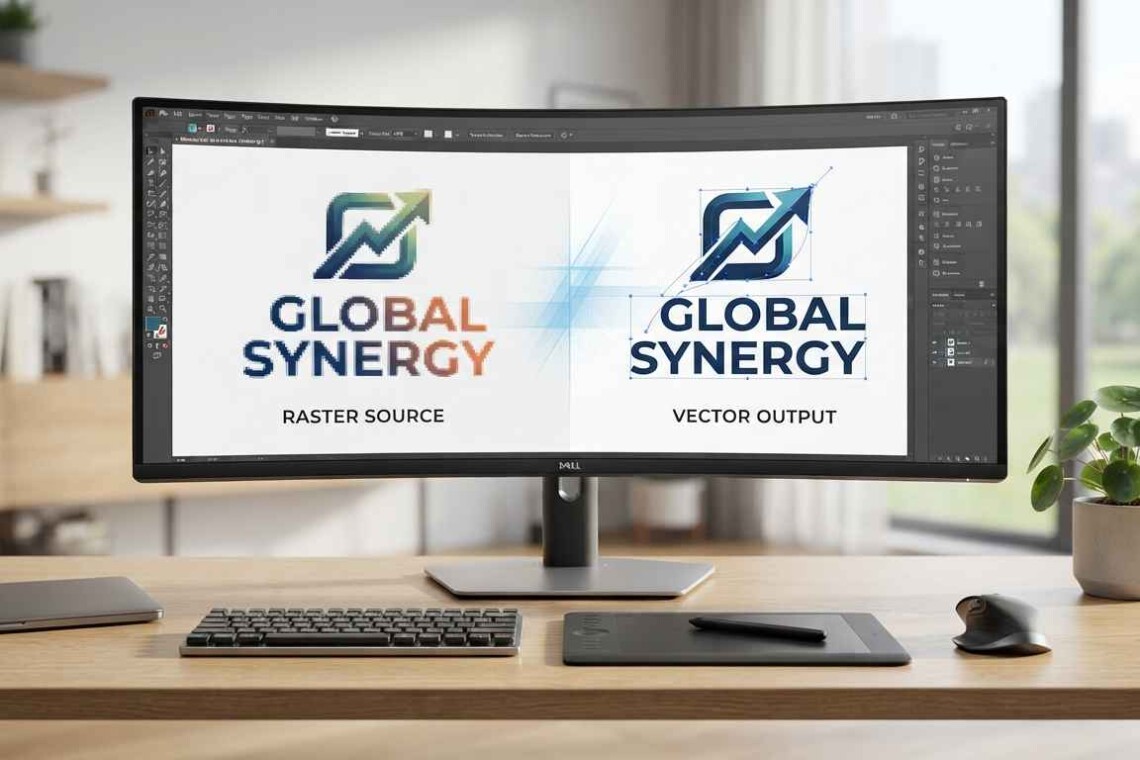

Join The Discussion